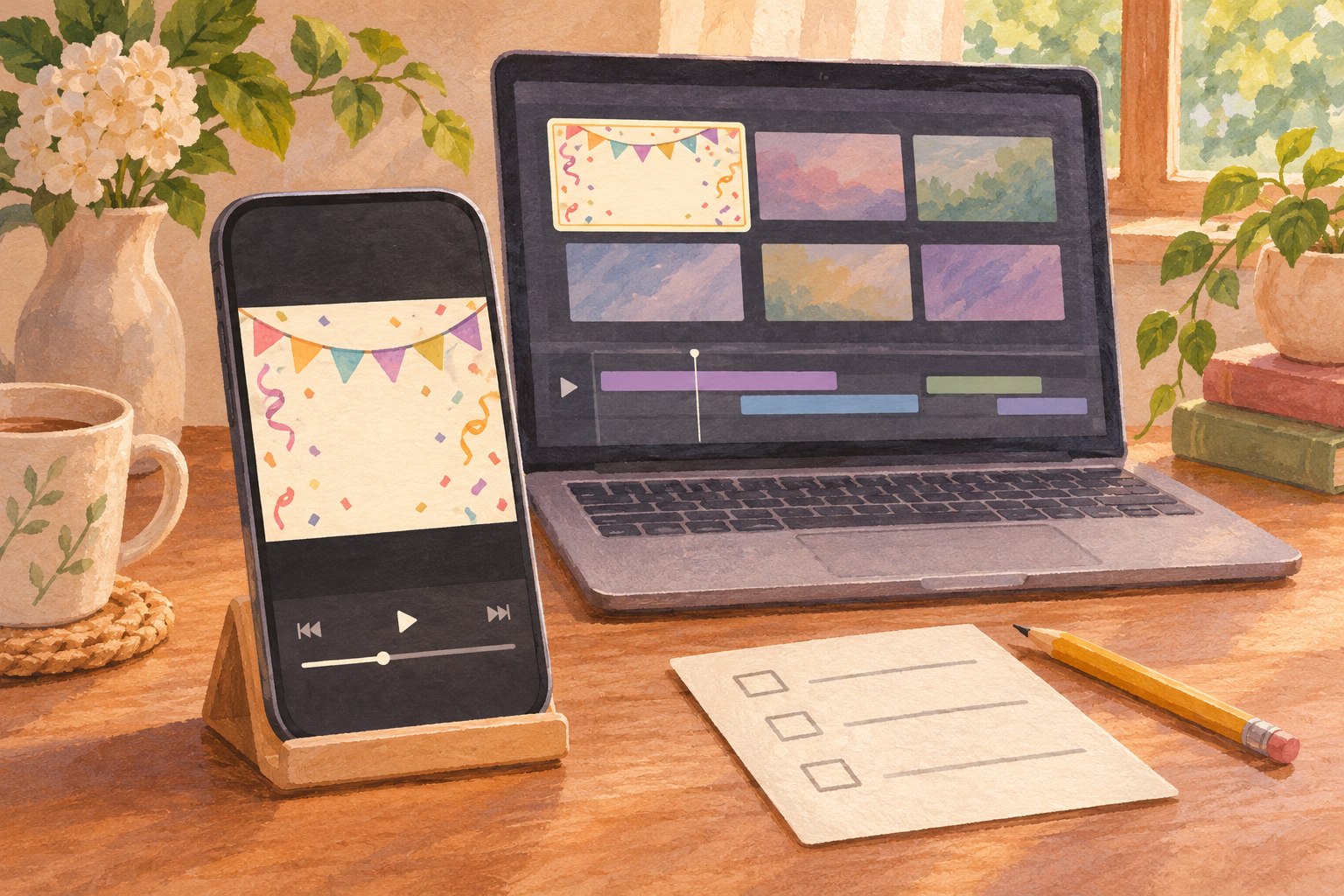

You want to show the friends helping with a birthday surprise how the preparations are going. The same camera roll also contains the present, a delivery label and the moment someone names it aloud. Before sending a video, make two different cuts: a planning preview that can travel early and a reveal version to keep until the right moment.
The files and scenes described here are a proposed workflow, not footage from a party we have filmed.
Give each version its own job
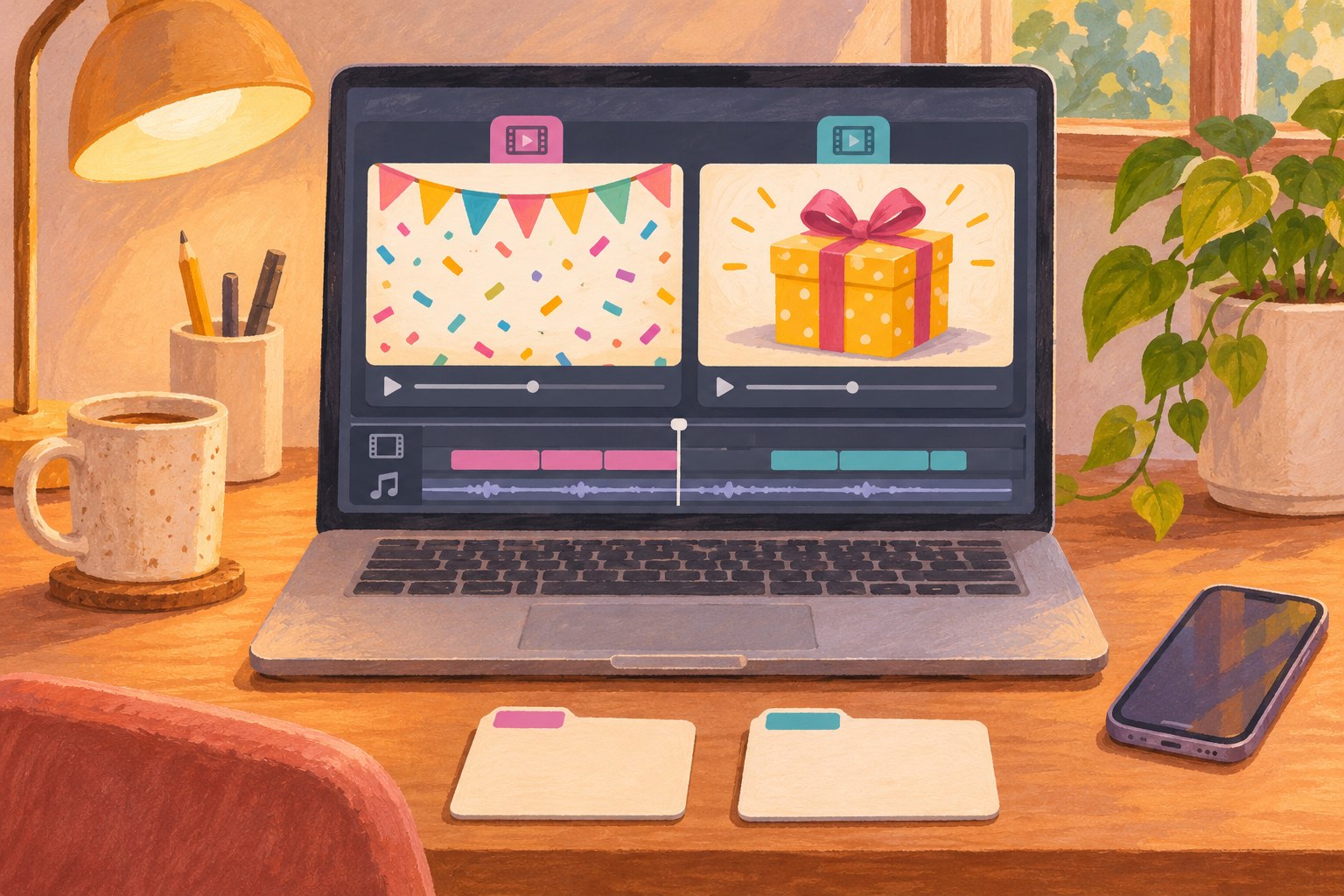
Keep the original recordings. In your usual editor, duplicate the project or save a separate editable version before making either cut. Call them something clear, such as morgan-planning-preview and morgan-full-reveal. These are example names; use your own occasion and date.
The preview should show only what the intended early audience needs: perhaps the empty room, paper decorations or where a table will go. The reveal can retain the present, the unwrapping and people's reactions. A useful preview may be much shorter than the full film. It does not need to tell the whole story.
If a planning detail itself gives away the surprise, leave it out. You can ask a specific helper about that detail separately rather than putting it in a general preview.
Remove the clues from the actual preview
Work through the preview timeline from beginning to end. Remove the gift and the reveal sequence completely, rather than hiding them behind a title or placing them after a harmless opening. Check the edges of each retained shot too: a recognisable box in a mirror or a product name on packaging can disclose as much as a close-up.
Listen once without watching. Someone may name the present while the camera is pointed at the floor. Remove that section of audio, or choose a different shot whose sound you can keep. If you mute a section, replay the cut to see whether the missing sound makes a request or explanation unclear.
Look at any text layers, captions and still pictures you added. A detail you removed from the video may still be written in a caption. When a shot is hard to separate from its clues, using a different shot is simpler than trying to cover every revealing corner.
Add an opening only if it helps
A little movement can introduce the planning cut without showing the actual present. For an imagined decorative opener, try Max Video AI's text-to-video tool with:
Fixed close view of a plain tabletop with a few small pieces of pastel paper confetti. One gentle puff shifts the loose paper a short distance, then it settles. Soft light, low contrast, no hands, gifts, boxes, names, dates, lettering or logos.
Download a result you want to use and inspect it before adding it. Keep the opener brief enough that helpers reach the useful footage quickly. It is decoration; it does not make later footage safe to share. A plain still opening works too.
Check the exported files, not just the projects
Export the preview and reveal as separate files. Open the actual preview export outside the editor, play it through with sound and inspect its ending. Confirm that the export is the shortened cut you intended, not the longer project you had open earlier.
Check its cover or thumbnail separately. Where the sharing destination lets you choose a cover, pick a frame from the safe preview. Do not assume an opening image controls every preview a service may generate.
Before sending, check three things together: the recipient, the filename and the file you have actually opened. For a shared draft, ask a helper to watch that same preview export and point out any clue you missed. Keep the full reveal in a separate folder until the occasion. Clear names help you find the right file; only checking the contents tells you what is in it.